An Opinionated Guide toTyping in Na’vi
BackFollow these steps to enable the “US (International)” keyboard layout:
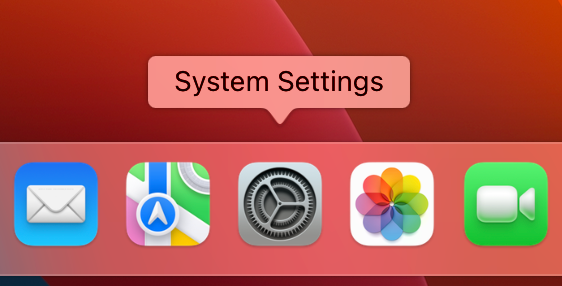
1. Open the System Settings.
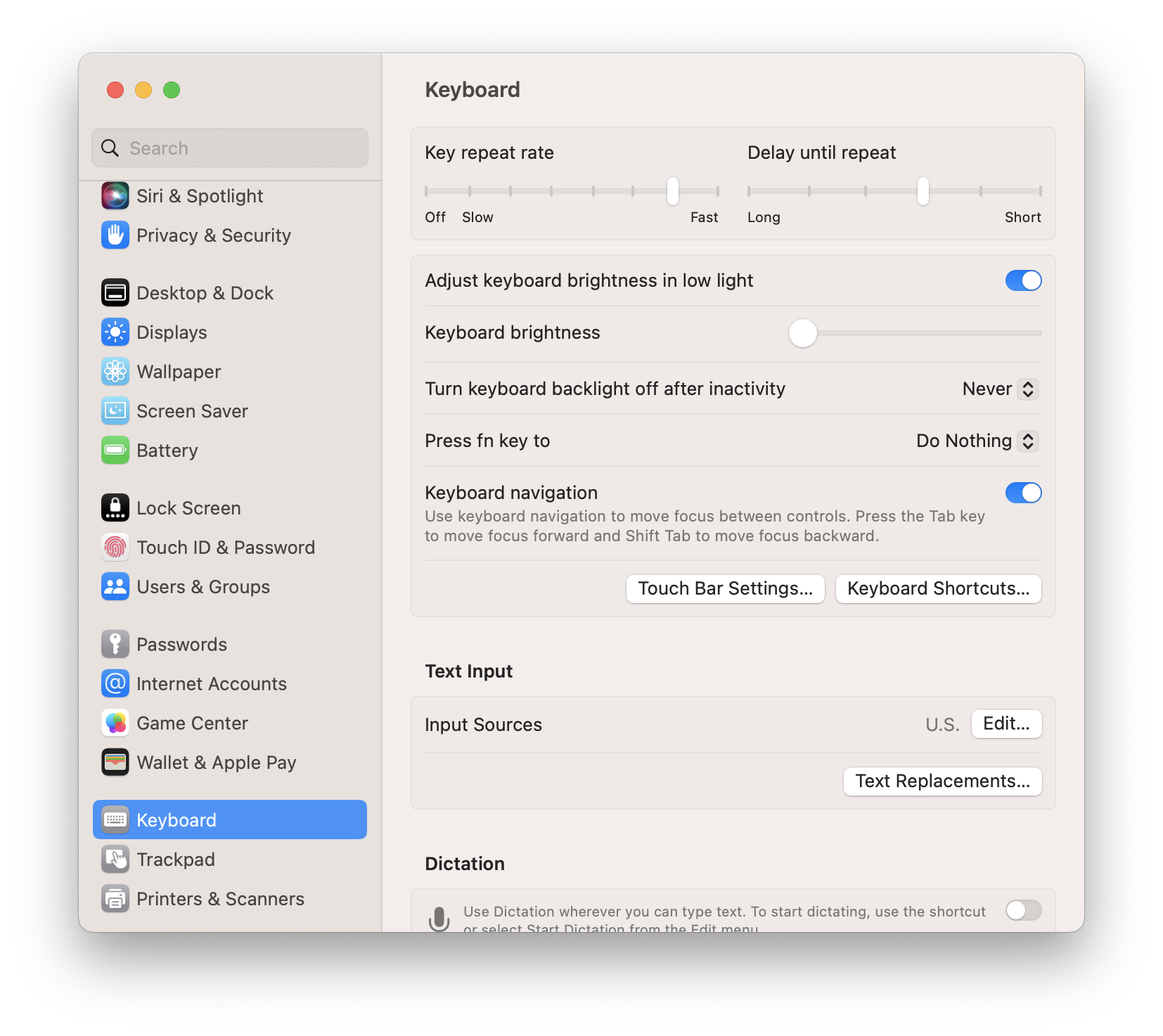
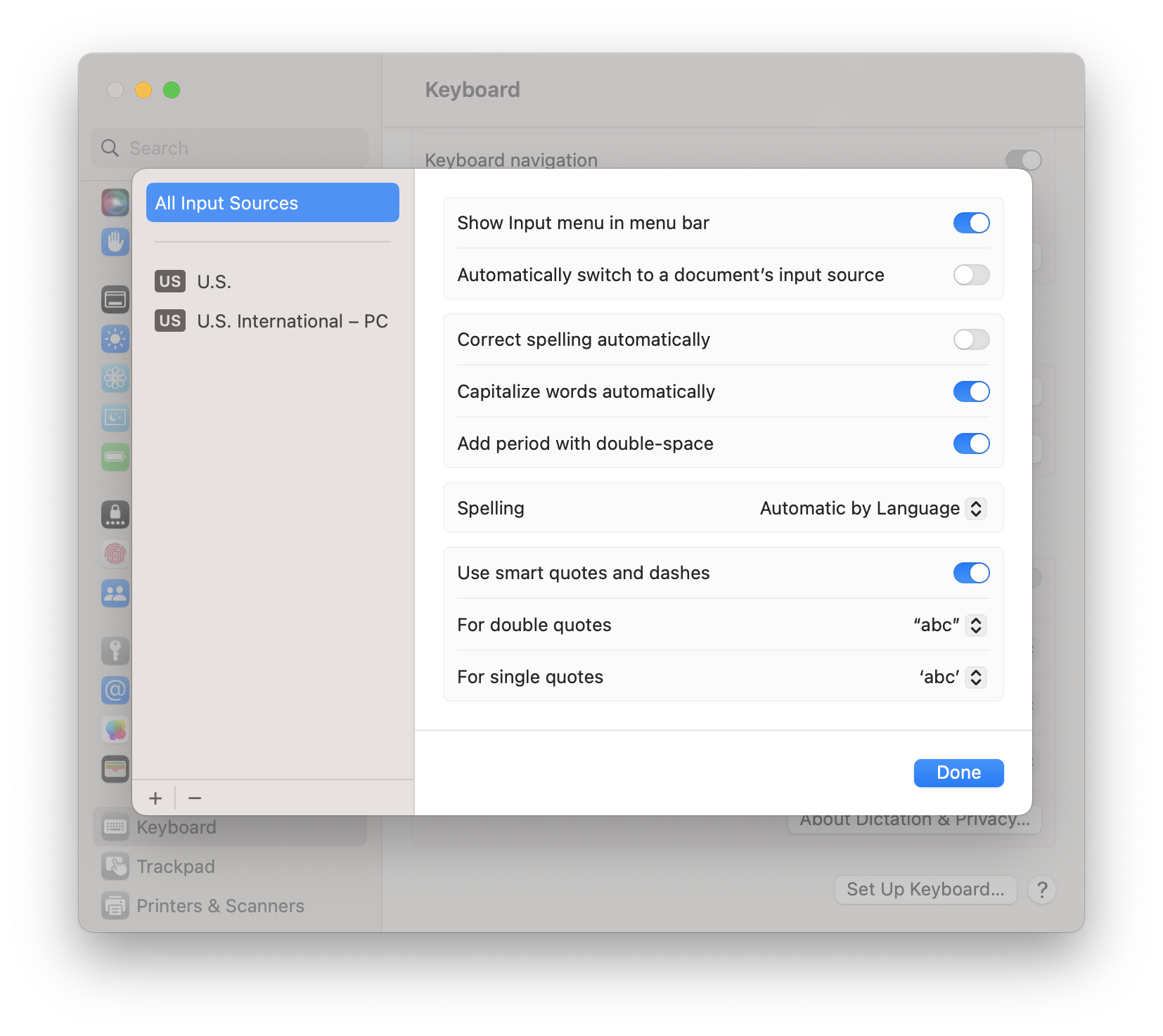
2. Click “Keyboard“ in the sidebar, and behind “Input Sources”, click “Edit…“.
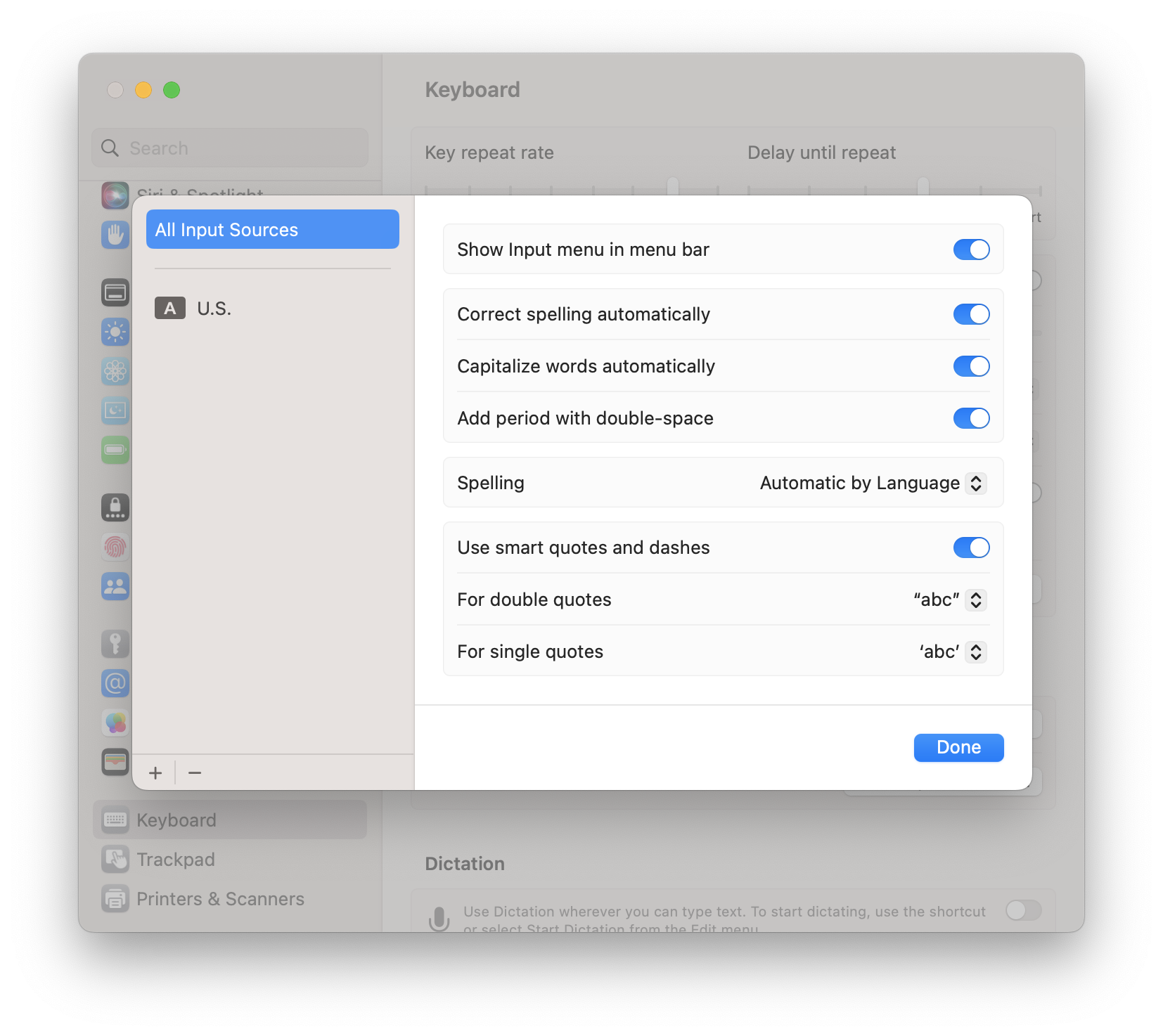
3. Click the small “+“ button in the bottom-left corner.
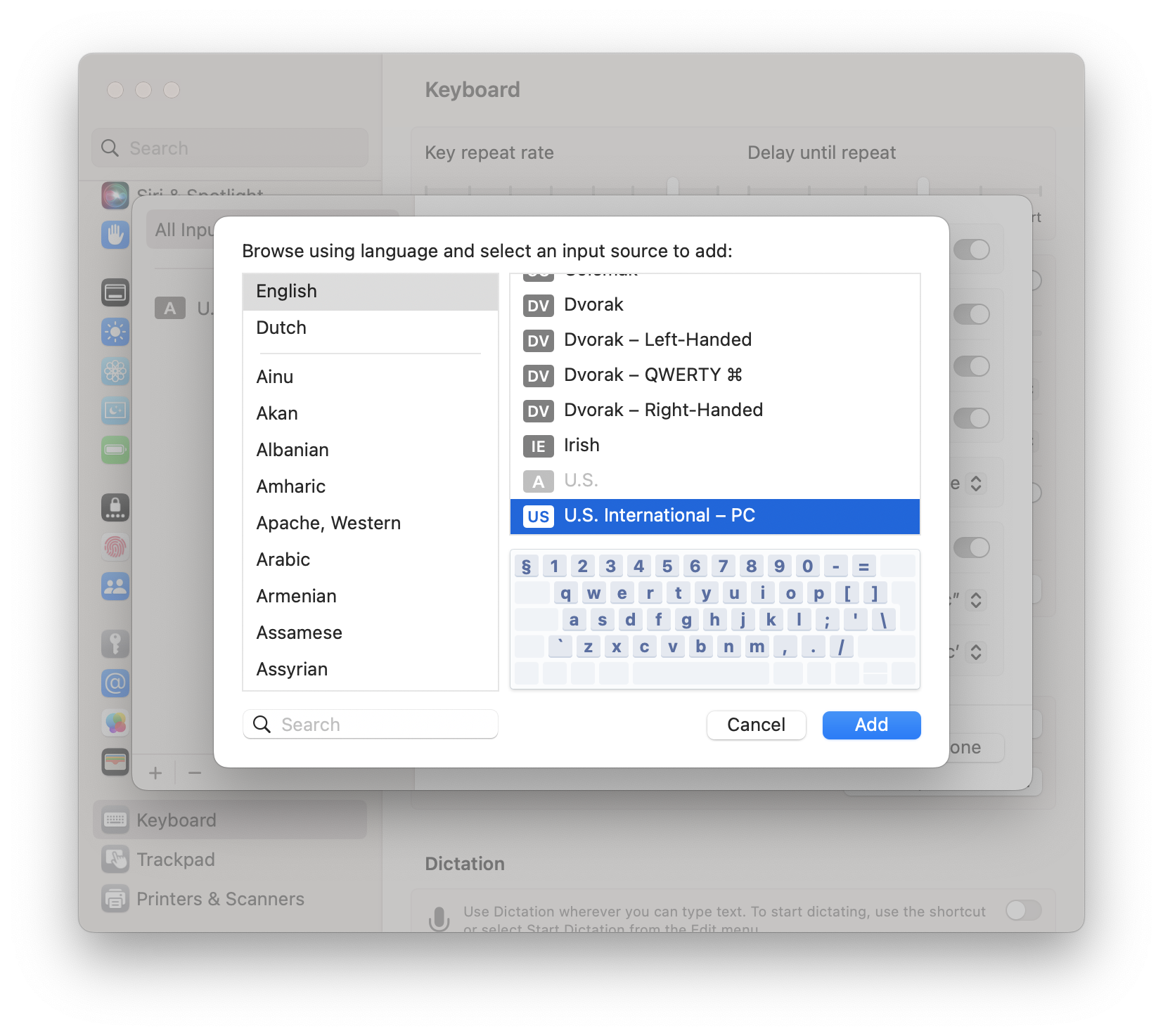
4. Select “U.S. International – PC“ and click “Add”.
5. (Optional) Turn off auto-correct to avoid macOS “correcting“ your Na'vi.
To do this, switch off “Correct spelling automatically“.
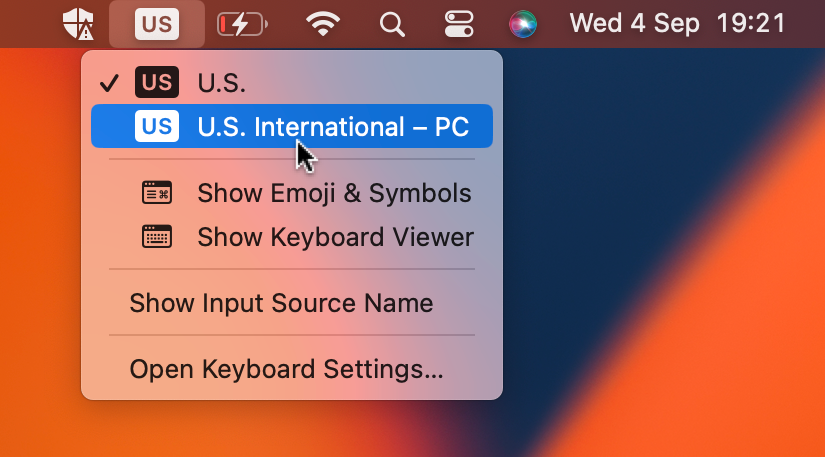
6. Switch to the layout by picking it in the Input menu.
You can find this menu in the top-right corner of the screen.
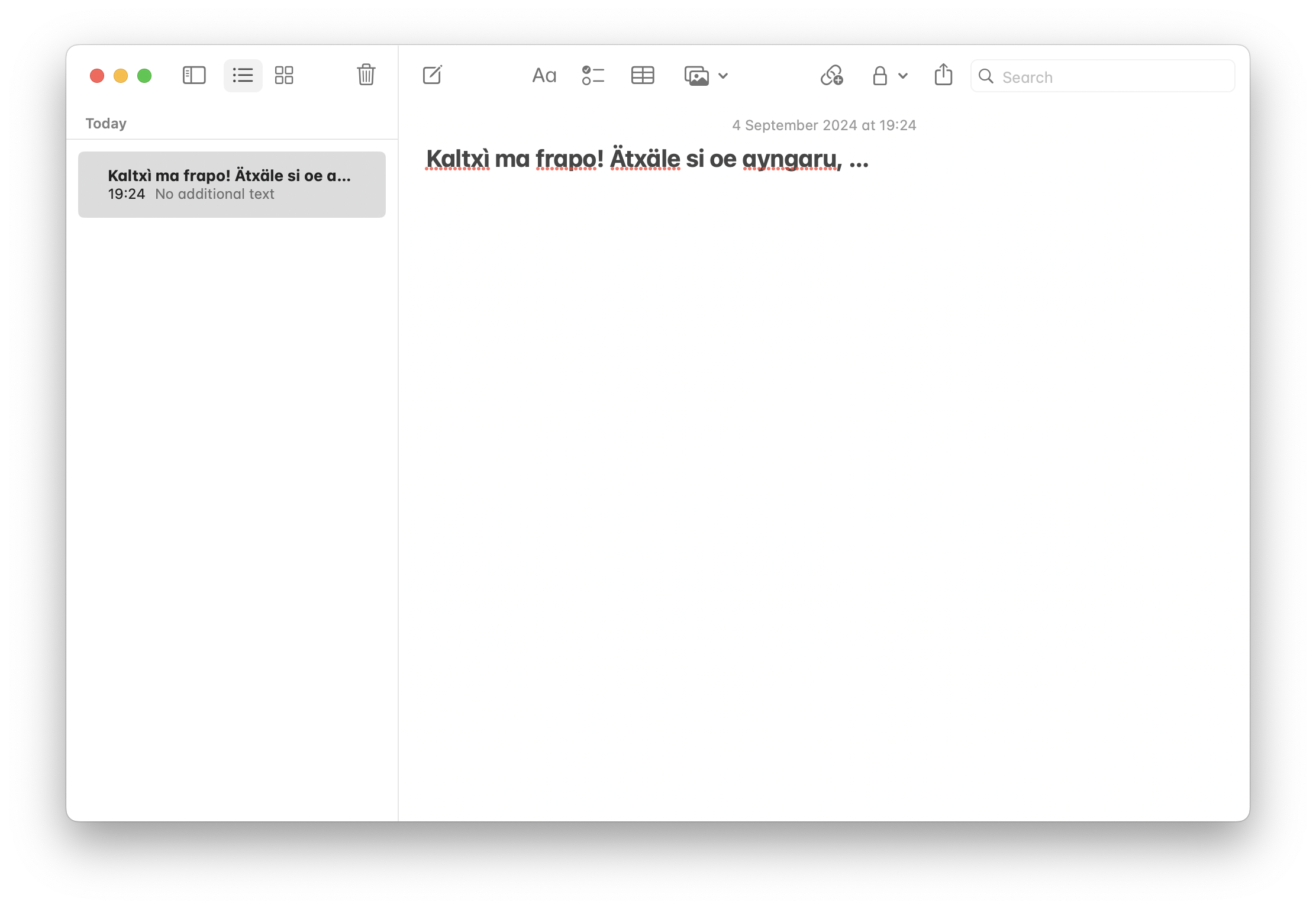
Congratulations, you can now type in Na'vi!
To type accented letters, you first type the accent and then the base letter. So:
- To type ä, press and release Shift + ' and then press A.
- To type ì, press and release ` and then press I.
- To type é, press and release ' and then press E.
- To type ù, press and release ` and then press U.
- To type the uppercase variants of these, just add Shift to the base letter.
- To type ', press and release ' and then press Space.
Want to go back?
If you're not happy with this keyboard layout, you can easily switch back to your old one using the Input menu (see Step 6). You can also completely remove the newly added keyboard layout by following Step 1–2, selecting “U.S. International – PC“ in the sidebar, and clicking the small “-” button in the bottom-left corner.